
 Contact
 Login




check BIM/CIM designs in accordance with Japan's MLIT draft guidelines for operating BIM/CIM design check sheets.

| BIM/CIM Design Check Tool | |
|---|---|
| New license: JPY 55,000(JPY 50,000 excluding tax): Shade3D Professional only Included as standard in Shade3D Professional Ultimate and Professional Civil. |
|
| For product details, contact us through our website. | |
| Contact us | https://shade3d.jp/support/contact/ (Japanese) |
Introduction
Japan's Ministry of Land, Infrastructure, Transport and Tourism has developed standards for incorporating BIM/CIM models into contract documents.
Guidelines for checking and inspecting these deliverable models require design checks that follow the prescribed process.
The Shade3D BIM/CIM Design Check Tool helps verify that design conditions and calculation results are correctly reflected in the model.
IFC Information
Feature overview
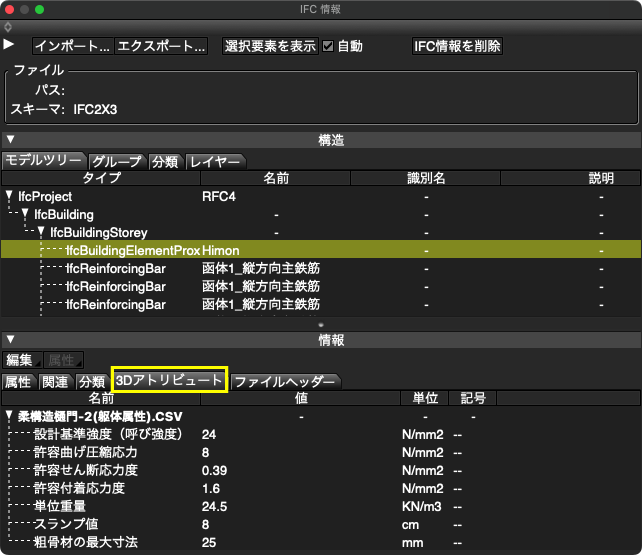
Import and export IFC (Industry Foundation Classes), an international standard for the architecture and construction industries.
IFC defines a systematic representation of all the elements that make up a building.
IFC Information displays and edits this information.


Import
Importing IFC loads attributes into the IFC Information window and model data into the scene.
Attributes and model data are linked, and their selections are synchronized.
Export
Export an IFC file incorporating attribute edits made in the IFC Information window.
Optionally include model edits made in Shade3D.
Supported edits include moving IfcProduct objects by moving parts and exporting polygon-mesh edits.
View and edit attributes
Display the model hierarchy and attributes.
Edit text, numbers, Boolean values and external file names in the list.

3D Reinforcement CAD integration
Integrate with our 3D Reinforcement CAD and display related 3D attributes.
BIM/CIM Design Check Tool
Feature overview
The tool integrates checking tools and check sheets in one interface. Review inspection items, run tools and record results in one window for a smooth design-check workflow.
Open the BIM/CIM Design Check Tool from View in the main menu.
Select structure to check

Structure selection buttons
Display a sheet for bridges, sluices/culverts, embankments/revetments, roads, tunnels, utility ducts or temporary structures.
“Load...” button
Load a JSON file.
Checking tools
“Back” button
Return to the structure selection page.
 “Grid Snap”
Toggle grid snapping, which limits the 3D cursor position to half-grid increments.
 “Object Snap”
Toggle snapping to vertices, edge centers, face centers and intersections.
 “IFC Information”
Open the IFC Information window to load IFC files and display building-element information.
 “Measure Tool”
Create measures and dimensions and display the selected coordinates, total length, length and angle.

 “Clipping Plane”
Display axis-aligned sections of all or selected objects and cut the geometry.

 “Measurement Tool”
Measure the selected object's surface area, volume and center of gravity.

 “Dimension Information”
Display a list of dimensions for created objects in the Dimension Information window.
 “Interference Check”
Measure interference between objects. The Measurement Information window lists intersecting pairs and volumes, and the view highlights intersections by color.
 “Non-manifold Edges”
List objects with non-manifold edges in the information window and highlight the affected edges in the view.
“Save Sheet to Scene” button
Save the working sheet to the scene. It is displayed automatically when the scene file is opened.
“Check Sheet”
Select a sheet.
“Check Sheet (1)”: Items traditionally checked on 2D drawings, now checked using a BIM/CIM model.
“Check Sheet (2)”: Items for verifying that the BIM/CIM model has been created correctly.
Basic table operations
Identify applicable items and check each inspection item.
“Applicable Item” pop-up menu
Set the selected item to blank, ◯ or ×.
On macOS, a check mark appears beside an already selected blank entry.
“Check Result” pop-up menu
Set the selected item to blank, ◯ or ×.
On macOS, a check mark appears beside an already selected blank entry.
“Remarks” text box
Enter notes or other information.
“JSON” button
Save the working sheet as a JSON file.
“Print” button
Print the table.
“Search” text box
Search items in the table.
Non-manifold Edge Information
Feature overview
Detect and list errors such as non-manifold edges in model data.
This corresponds to non-manifold edge detection under section 3.2.1, “Checking BIM/CIM Model Integrity,” of the draft BIM/CIM design check sheet guidelines (March 2020).
Detect non-manifold edges
Run detection on selected objects and their descendants.
The list shows affected objects, error types and edge counts. Selecting an entry highlights the affected edges.