
 Contact
 Login



Built on our accumulated technologies, this powerful tool supports faster, more efficient BIM/CIM design checking.
Here are three key benefits that help BIM/CIM teams solve problems and improve project outcomes.
Complete the entire workflow in Shade3D
View, check, complete and print design check sheets based on MLIT standards entirely in Shade3D. Store IFC files and BIM/CIM check sheets in a Shade3D scene file.
Avoid managing files separately, resume work easily, and record and manage design-check results efficiently.
A streamlined workflow improves understanding of the project and model, supporting better quality.

An efficient arrangement of tools
A broad set of tools is organized in one window for quick access with fewer operations during design checks.
Carry out refined, efficient workflows and improve productivity.
Powerful tools for efficient design checking
Perform prescribed check-sheet tasks efficiently in Shade3D and streamline the design-check process.
Interference check
Check Sheet (1): Items traditionally checked on 2D drawings, now checked using 3D models.
- No.18: Have bearing anchor bolts and prestressing cables been checked for interference?
- No.23: Have members been checked for interference with reinforcing bars?
Process large quantities of reinforcement, anchor holes and prestressing cables together at high speed. Inspect interference in both tables and the 3D view.

Detect non-manifold edges
Check Sheet (2): Items for verifying that a 3D model has been created correctly.
- No.04: Are there inconsistencies such as twists or disconnected parts?
- No.10: Have solids been split into surfaces, or have surfaces been left open?
Rigorously detect and list errors such as disconnected faces. Real-time checking remains fast even with detailed models.

Clipping plane
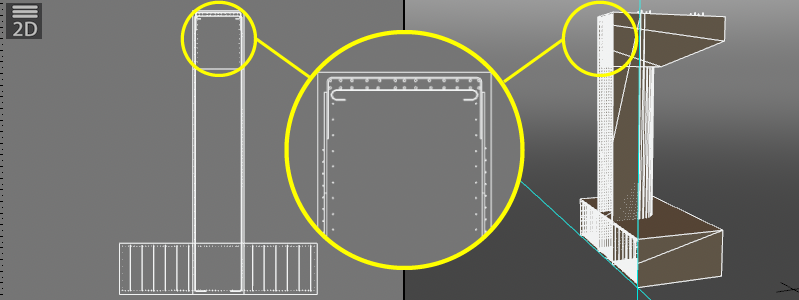
Show sections of all or selected objects at any axis direction and position. View results in 2D or 3D, inspect model information, and save or print check images from the 2D drawing.
Section display


Section geometry
Generated geometry is stored in parts. “Cut Result” holds the 3D model; “2D Drawing Part” holds the model for inspection in the 2D drawing.
Safely edit IFC files containing diverse information
Inspect and edit both IFC attributes and 3D model data.
Export edits while preserving the original information.
Safely edit IFC files containing many types of information.
• Add attributes, including attached site photographs
Add physical and textual attributes to models.
Attach site photographs to IFC files easily.

Edit 3D models
Include model edits when re-exporting.
Make simple adjustments, such as correcting interference, directly in Shade3D.
